7+ Taskbar Numberer: taskbar numbers for Utter Command

Speech recognition
This utility has been designed for speech recognition users who use voice macros to switch between open applications and tray icons. It works on Windows 7, Windows 8, and Windows 10 operating systems, both 32-bit and 64-bit.
For example, speech recognition users that use Dragon NaturallySpeaking Professional with the third-party provided Utter Command add-on can switch to the third application shown in the taskbar by using the command “Window 3”, or can right-click on the third visible tray icon by using the command “Tray 3”. When there are many open applications, or when the user has a significant amount of tray icons, it can become quite cumbersome to count by hand the number of icons in order to identify the sequence of the intended application or tray icon.
“7+ Taskbar Numberer” solves this problem by numbering sequentially, left to right:
– the icons for the open and close-but-pinned windows applications.
– all the visible tray icons.
and then placing tiny visible numbers (a.k.a. “hints”) in the top left corner of the application icons, and in the top right corner of the tray icons. The numbering scheme supports more than one digit, so that the hint for the 12th application is “12”.
While this utility has been tested with the Utter Command user interface, it will work with any other voice macros that select open applications or tray icons by rotating with them sequentially from left to right.
The utility adjusts dynamically as new applications or tray icons are added, and also works when the user has chosen to make just a subset of the tray icons visible.
This above “Speech recognition” section wasn’t written by me. The author wished to remain anonymous.
Win+# keyboard shortcuts
You can use the Windows key+number keyboard shortcut to refer to a taskbar item.
Windows logo key
+number
Start the program pinned to the taskbar in the position indicated by the number. If the program is already running, switch to that program.Shift+Windows logo key
Start a new instance of the program pinned to the taskbar in the position indicated by the number.Ctrl+Windows logo key
Switch to the last active window of the program pinned to the taskbar in the position indicated by the number.Alt+Windows logo key
Open the Jump List for the program pinned to the taskbar in the position indicated by the number.
 +number
Source: Microsoft.
7+ Taskbar Numberer adds numbers to your taskbar items, so you can see right away what keyboard shortcut is assigned to each item.
Optionally, the numbers can appear only when the Windows key is down.
Number of combined buttons
7+ Taskbar Numberer adds numbers to your combined items on the taskbar, similarly to the way Windows XP did:

Optionally, you can use this option, but show Win+# keyboard shortcuts when the Windows key is down.
Usage
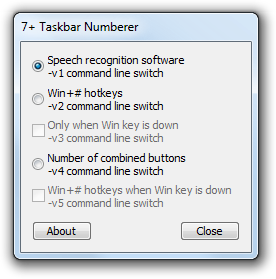
To launch this utility automatically when Windows launches and without showing the dialog, add a shortcut in your startup folder pointing to the location where you have placed the utility, followed by the -hidewnd command line switch, similar to:
"C:\Software\7+ Taskbar Numberer\64\7+ Taskbar Numberer.exe" -hidewnd
You might also want to add the -hidetray command line switch to hide the tray icon.
To use a specific option from the GUI, use the corresponding command line switch:
-v1, -v2, -v3, -v4, or -v5.
To exit from this utility, right-click the tray icon.
Download
 7plus Taskbar Numberer.zip (214.24 kB)
Source code
Tags: 7+ taskbar numberer
Like others have said, it would be nice to have some basic settings for size and appearance of the badges. But other than that, awesome tool!
Yeah I do agree. Anyway for now only background and foreground color supported
Doesn’t work.
Windows 10 Pro Insider Preview
version 2004
Installed: 15.03.2020
OS bulid 19577.1000
Experience Windows Feature Experience Pack 120.5101.0.0
Error something like that IDS_INJERROR_X3
Insider builds are indeed not supported. Support for Windows 10 version 2004 will be added once the non-insider version is released.
Like now?
Please try version 9.9.
What a gem! I threw it in the startup folder with the commands -hidewnd -hidetray -v3. Smooth.
I’ve released version 9.9 which adds support to Windows 10 version 2004.
Many thanks!
I Love this app, but stop working in Win 10 Pro – ver 2004…
Please try the newly released version 10.2.
Thanks!
Sweet, thanks so much! With the Windows 10 light theme, the numbers appear white on white and aren’t readable. I fixed it by switching to the dark theme. OK for me as I don’t care much about light or dark.
Thanks for the feedback. I’ve just released a new version, 10.0, which allows to customize colors and positions with a config file. I should have done that a long time ago 🙂 Now you can just set the text color to black.
I have downloaded it and it works!
Thanks, this is great.
Hi Michael,
You said elsewhere that “In “Win+# hotkeys” mode, the numbers are deliberately displayed on the main monitor only, since the hotkeys only affect the main monitor taskbar.”
In my setup (and I believe it is the default?) the taskbar is the same on all monitors, so it would be nice to have the Win+Hotkeys monde support multiple monitors for that case too. For now I am using speech recognition mode for this purpose.
Hi Tom,
Good idea, I’ve implemented it so that if the taskbar is the same on all monitors, numbers appear on all of them. Please try the new version, 10.1.
Not sure about the default option, but I personally have the taskbar configured so that only the monitor’s windows are displayed there.
Hi,
Thanks for this terrific tool, I noticed that for me at least using the latest version available from the download link the numbering doesn’t appear on every monitor.
Can you please post your 7+ Taskbar Numberer configuration, and the “Multiple displays” configuration in taskbar properties? I’ll try to reproduce the problem.
Hmmm…. I guess I didn’t realize I needed to make any changes to my config, its the default.
Here’s a screenshot from my multiple displays properties: https://i.imgur.com/9faf4je.png
I’m using -v5 -hidewnd cmd switches.
It’s indeed a bug, the buttons are not being redrawn. If you hold the Win key and hover over them, you’ll see the numbers appear.
Please try the newly uploaded version, 10.2.2.
This worked thank you!!
Hi,
sorry to bother you again, I noticed another issue, when the win key is used for another shortcut in powertoys (e.g. win+alt+space) for something the numbers on the taskbar don’t get redrawn correctly when using -v5: the numbers change from the open windows to the taskbar number but don’t change back when you let go of the win key unless it’s the last key you release.
I totally understand if this isn’t something that you can really fix, just thought I’d let you know.
thanks!
Hi,
Thanks for the report. I was able to reproduce it without Power Toys like this:
Win down + Alt down + Win up + Alt up -> numbers are still shown.
It turns out that when the Alt key is pressed, Windows sends a different message, WM_SYSKEYUP instead of WM_KEYUP.
It should now be fixed in v10.2.3.
Thank you for the quick response and update! gotta love microsoft’s odd decisions… the doc doesn’t really explain why it’s important to have a different message when alt is pressed.
Fantastic. I am impressed by your responsiveness! I post a feature request one evening, and the next morning I see it implemented. 🙂
Hi,
Could you indicate what are the purpose of each of the config values: [tray_border] [tray_background]…?
I tried playing with each one of them in order to make the number appear next to the icons, but with no luck.
Thanks!
Hi,
These are values which are added to each rectangle, like this:
https://i.imgur.com/WkJQIXr.png
For example, to move all numbers as-is one pixel to the left, change all
leftandrightvalues from0to-1.Thanks!
I managed to get rid of the border, looks cleaner to me: https://i.imgur.com/rACHn9V.png
Great update, thanks for still maintaining this wonderful software. 🙂
Hi Anon,
Could you share with us how to remove the border?
Regards
Hi,
To remove the border you can change the settings in config file in order to make the border rectangle as small as possible (= invisible)
These are my settings:
[tasklist_border]
left = 0
top = 0
right = -11
bottom = -16
[tasklist_background]
left = 0
top = 0
right = -10
bottom = -15
[tasklist_text]
left = 24
top = -6
right = 24
bottom = -6
Hope this helps 🙂
Thank you!
Just installed (I think) 7+, but I have no idea how to use it. All I see is a box with 5 options, a button for About and one for Close. How do I get the program to add the numbers to the icons? Please don’t tell me I have to be a programmer to install this. Not comfortable with messing with the registry. The section on usage appears to be written for power users, which I am not. I just want to number the icons to use the Win key shortcuts.
Hi Bruce,
You don’t need to be a programmer, and you don’t need to mess with the registry. Just run it, choose the option that fits your needs, and it should display the numbers on the taskbar.
Thanks. I didn’t realize I had to create my own shortcut for the desktop. Now, do you know if there is a way to assign more than 10 numbers?
You can place this shortcut in the startup folder for it to launch automatically when you power your computer.
See the discussion here:
https://rammichael.com/7-taskbar-numberer/comment-page-1#comment-2385
The newest Windows update (https://support.microsoft.com/nl-nl/help/4566782/windows-10-update-kb4566782) seems to have broken the 7+ Taskbar Numberer. I’d be very grateful if it could be updated again :-). Thanks!
Please try the newly released version 10.2.
Awesome, thank you very much!
Yep, broken under newest update. :/
Thanks for all your work Michael.
Please try the newly released version 10.2.
It works. Thanks so much!
Thank you very much for this great tool !!
I love this tool, and I love Taskbar Tweaker. Don’t suppose there’s any chance you could merge the features from Taskbar Numberer into Tweaker?
Many thanks!
I don’t plan on merging the two tools in the near future. Maybe one day…
Hi there! I am a big fan of your utilities. I want to thank you genuinely for providing these for free 🙂
I was curious if you’re aware of any utilities that allow items on a jumplist (menu from Alt+Win+number) to be selected by inputting the first letter. It used to be a feature in Win7 but not anymore :'(
Thanks again!
Hi Benjamin,
Thank you for the feedback, I’m glad that you like my tools! Unfortunately, I’m not familiar with something that allows to select jump list items like you said.
Ah, oh well. I’ve been missing this functionality dearly. Is there any possibility of this feature being added to one of your existing tools? I’m not great at programming but I’ve been trying to figure out how to do it if you have any tips
Probably not to one of my existing tools. 7+ Taskbar Tweaker might be a potential fit, but it has no jump list customization options, and it’s a research project I’m not planning to invest into in the near future. Maybe one day, in 7+ Taskbar Tweaker or in a new, dedicated tool.
Meanwhile, you can try your luck contacting Microsoft about it. You can try the Feedback Hub, or perhaps this GitHub repository for development issues.
Alright, good to know. Thanks for the help and keep it up 🙂
hi thank you for this useful software.
I am trying to use it with voice recognition but it seems that utter command software cannot be downloaded anymore. So I can only use the commands that translate into
win and 1-9keyboard strokes. does anybody else have a workaround for this?also I can’t find a way to use the numbers assigned to the applications on the 2nd screen when I have a separate taskbar on the 2nd screen with unique applications shown in each taskbar
Hi Hakan,
I’ve never used speech recognition on Windows, so I’m afraid that I can’t help. Initially I created the tool for an Utter Command user who told me where the numbers have to be. If you find another speech recognition software that requires adjustments to 7+ Taskbar Numberer, let me know and I’ll consider changing what’s needed.
that’s great to know. I am just discovering the available tools and learning them right now, but I will let you know if I can come up with another solution. Thank you very much
Hello. Thank you for creating a great app, it really handy for people like me that need this kind of ability on windows 10 so I can hide and unhide the window without restore and maximize anymore, sometimes the number are large that cause it hard to identify the window, and this app come to rescue. Thank you!
Hello. Thank you for creating an amazing tool. Here is trouble that when I press the Win + D shortcut then it back to the desktop, and the number is shown at the toolbar but not disappear. When I press the Win + D shortcut again, then it disappeared. When I press the Win + number shortcut, the number shown and disappeared works fine.
I use the setting v3. My windows version is Version 6.1.7601.
Hi,
I wasn’t able to reproducer it. Here’s what happens on my computer, both when using the regular keyboard and when using the On-Screen Keyboard (for the recording):
https://i.imgur.com/LhhcyQC.gif
Hello, Thanks for creating amazing tool, it’s usefull
but it is not work for win11, complained with “IDS_INJERROR_LOADDLL”, I have built it myself using vs2019, IDS_INJERROR_LOADDLL disappeared, but still not work? Need I to try building it with WIN11 API?
Hi,
Unfortunately, 7+ Taskbar Numberer has to be re-implemented in order to support Windows 11, which has a completely new implementation of the taskbar UI. For more details, see the blog post about Windows 11 and 7+ Taskbar Tweaker.
It was actually working on Windows 11 just fine until the recent update (which is NOT an insider build).
Any way to fix this?
Now, I get an IDS_INJERROR_X3 whenever I launch the shortcut, and it force-restarts my explorer.exe.
Also worth nothing is that I’m using a taskbar hack called ExplorerPatcher to get the win10 taskbar back.
Cheers
Please try the newly released version 10.2.4, let me know whether it works.
Ah, that fixed it. Nice work, and thank you!
Does it by design that this piece of software doesn’t work on old windows/classic windows design task bar? Thank you
Most, if not all options should work. What option doesn’t work for you?
The number doesn’t even show. haha.. I think nevermind.. it’s on Windows 7 with Classic Design. Nowdays no one use classic design I think. I just messing around with old devices and enable classic windows theme, yet it doesn’t work with 7taskbar numberer sadly.
Oh, yes, sorry, the classic theme is indeed not supported. I though the question was about 7+ Taskbar Tweaker, after replying to several other tweaker-related comments.
The download link seems not to be working anymore. Is there a new download link?
The link works for me, but I uploaded it to Dropbox for you:
https://www.dropbox.com/s/yjmsvn1kpbvvf30/7%2B%20Taskbar%20Numberer%20v10.2.3.zip?dl=1
Thanks Michael!
Windows 11 please!!!!
Sadly, not working on Windows 11 Family 😔
Version 10.0
I like so much this feature.
Do you intend to support Windows 11 in near future ? 🙏
Not in the near future. Maybe one day. Also see my reply here.
This is fantastic! Yeah!
while i checked the files on virust total i got 2 flags on the .exe and 1 on the inject.dll
i kinda worry to download use the program, i would like ur comment about that
Hi Yonatan,
These are false positive detections. Unfortunately, struggling with false positives is a non-ending hassle.
This problem was discussed many times in the blog comments, for example:
https://ramensoftware.com/7-taskbar-tweaker/comment-page-43#comment-11035
https://ramensoftware.com/contact/comment-page-4#comment-10292
See also Nir Sofer’s blog post, Antivirus companies cause a big headache to small developers, a good write-up about the problem.
You can always help by reporting the detection as a false positive to the relevant antivirus companies.
thx, for the reply, though the second link leads to 404
Sorry, I fixed the link and updated the comment.
Hello,
This doesn’t seem to work on Windows 11. Any chance we get an update? Love this so much, improves efficiency 10x.
Regards,
C
Hi Chris,
I’d love to make a version for Windows 11 when I have some spare time for it, but it will have to be reimplemented from scratch. See my reply here. When implemented, it will probably be implemented as a Windhawk mod.
Hi Michael,
Can’t wait! Is there anywhere I can subscribe to in order to be notified of a release? Did have a look at making my own WH mod but it went over my head haha.
Thanks,
C
You can follow the 7+ Taskbar Numberer RSS feed. Alternatively, you can join and follow updates in the Windhawk Discord server, in this case you’ll get updates about all mod updates, not just the 7+ Taskbar Numberer mod.
Hi, Michael,
I’m getting the IDS_INJERROR_LOADDLL error on Win10 Pro 22H2. Any idea on what’s causing it and how to fix it?
Thank you in advance.
Hi, which version are you using? A new version was released recently, make sure you’re using the latest version.
Just updated to v10.2.5. Everything is back to normal.
Thanks again!
Yeah! Hurrrah…
I’ve been trying to live without this amazing tweak for a couple of weeks now, but it’s been terrible. (I erroneously thought the project wasn’t updated because github didn’t reflect it…)
THANKS!
When the ‘Speech Recognition Software’ option is chosen and Microsoft Outlook (which has a main windows and a notification window) is running, I cannot switch to the notification window by using the Windows key+number, and for all the applications pinned on the right of Microsoft Outlook, the number shown on an application actually refer to the application on the right of it.
If you’re using 7+ Taskbar Numberer for Win+# hotkeys, don’t use the ‘Speech Recognition Software’ option, use the ‘Win+# hotkeys’ option. The ‘Speech Recognition Software’ option is for speech recognition software, as the name implies.
Thanks!
Is there a way to set ‘Win+# hotkeys’ as the default start mode?
Sure, use the relevant command line switch (
-v2,-v3, or whatever you prefer). You can create a shortcut in the startup folder and add the command line switch in the shortcut’s properties. You can also add-hidewndto start 7+ Taskbar Numberer with a hidden window. Let me know if you need more help with this.Done. Thank you very much!
cannot show numbers on taskbar-icons after upgrade my win10
What’s your explorer.exe version? What’s your 7+ Taskbar Numberer version? Which error message are you getting, or what exactly happens when you run 7+ Taskbar Numberer?