7+ Taskbar Numberer: taskbar numbers for Utter Command

Speech recognition
This utility has been designed for speech recognition users who use voice macros to switch between open applications and tray icons. It works on Windows 7, Windows 8, and Windows 10 operating systems, both 32-bit and 64-bit.
For example, speech recognition users that use Dragon NaturallySpeaking Professional with the third-party provided Utter Command add-on can switch to the third application shown in the taskbar by using the command “Window 3”, or can right-click on the third visible tray icon by using the command “Tray 3”. When there are many open applications, or when the user has a significant amount of tray icons, it can become quite cumbersome to count by hand the number of icons in order to identify the sequence of the intended application or tray icon.
“7+ Taskbar Numberer” solves this problem by numbering sequentially, left to right:
– the icons for the open and close-but-pinned windows applications.
– all the visible tray icons.
and then placing tiny visible numbers (a.k.a. “hints”) in the top left corner of the application icons, and in the top right corner of the tray icons. The numbering scheme supports more than one digit, so that the hint for the 12th application is “12”.
While this utility has been tested with the Utter Command user interface, it will work with any other voice macros that select open applications or tray icons by rotating with them sequentially from left to right.
The utility adjusts dynamically as new applications or tray icons are added, and also works when the user has chosen to make just a subset of the tray icons visible.
This above “Speech recognition” section wasn’t written by me. The author wished to remain anonymous.
Win+# keyboard shortcuts
You can use the Windows key+number keyboard shortcut to refer to a taskbar item.
Windows logo key
+number
Start the program pinned to the taskbar in the position indicated by the number. If the program is already running, switch to that program.Shift+Windows logo key
Start a new instance of the program pinned to the taskbar in the position indicated by the number.Ctrl+Windows logo key
Switch to the last active window of the program pinned to the taskbar in the position indicated by the number.Alt+Windows logo key
Open the Jump List for the program pinned to the taskbar in the position indicated by the number.
 +number
Source: Microsoft.
7+ Taskbar Numberer adds numbers to your taskbar items, so you can see right away what keyboard shortcut is assigned to each item.
Optionally, the numbers can appear only when the Windows key is down.
Number of combined buttons
7+ Taskbar Numberer adds numbers to your combined items on the taskbar, similarly to the way Windows XP did:

Optionally, you can use this option, but show Win+# keyboard shortcuts when the Windows key is down.
Usage
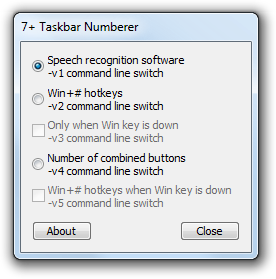
To launch this utility automatically when Windows launches and without showing the dialog, add a shortcut in your startup folder pointing to the location where you have placed the utility, followed by the -hidewnd command line switch, similar to:
"C:\Software\7+ Taskbar Numberer\64\7+ Taskbar Numberer.exe" -hidewnd
You might also want to add the -hidetray command line switch to hide the tray icon.
To use a specific option from the GUI, use the corresponding command line switch:
-v1, -v2, -v3, -v4, or -v5.
To exit from this utility, right-click the tray icon.
Download
 7plus Taskbar Numberer.zip (214.24 kB)
Source code
Tags: 7+ taskbar numberer
Good work. Thanks much. Very useful shortcuts.
This is useful for use with shortcuts Windows 7 (Winkey + [number]).
This is what I was thinking. The only problem though, is that when you have more than one window open for a particular program (and don’t combine the taskbar buttons), the extra windows get their own number, throwing off the whole number scheme (for the purpose of Winkey+[number]).
It’d be great to incorporate this concept into 7 Taskbar Tweaker, but make it so that whenever you press and hold in the Windows key, the numbers appear, letting you know which number to press to activate a desired program.
That is a Windows 7 feature I have wanted FOREVER.
This program was not designed for the Win+[number] hotkey, but for speech recognition software.
I am aware of that. I was simply responding to what “Murillo” said about it being useful with Win+[number] shortcuts.
I think 7 Taskbar Numberer is a great concept. Seeing it made me imagine a kind of Win+[number] “helper”.
Keep up the great work, RaMMicHaeL!
I’ve released 7 Taskbar Numberer v4.0, which can be used for numbering taskbar buttons for Win+# hotkeys.
Thanks U Very MUch It’s Work Bro horay… 🙂
There I found a bug.If there are several same windows of one process, they shound have the same number.Since the taskbar is set to “Merger when taskbar is filled”. Poor english, if u can understand.
See this comment and my reply:
http://rammichael.com/7-taskbar-numberer#comment-1878
Hi,
my Virusscanner tells me this.
Website gesperrt!
G Data AntiVirus 2013 hat den Zugriff auf diese Webseite verweigert.
Die Seite enthält infizierten Code: Gen:Trojan.Heur.FU.bqW@aazpm@dc (Engine A).
A false positive. Can you send them a false positive report?
Can we get a version/option without tray numbers?
I wanna use it just for win+num shortcuts
Btw, i’d use it as is maybe if tray icons were not hidden by those numbers (especially 10+ icon #s)
The program was designed for speech recognition software, not for Win+num hotkeys.
I’ve released 7 Taskbar Numberer v4.0, where such option is available.
Is there a way to have it use this option when being run from the startup folder?
Use a shortcut with the appropriate command line option.
Hey RaMMicHaeL,
Thanks a lot for you work, I’ve been looking for something like this for a while. I know you’ve already responded multiple times that this was designed for speech recognition, but I would really love a version that didn’t have tray icon labels ( I just use this with Win+number).
If you have the time, I would be very grateful for a no-tray version, or if you were willing to release the source I can do it myself.
Either way, thanks again for your work.
Done in v4.0.
I loved the potential of using this for Windows key shortcuts, as it’s the only thing I’ve found that overlays the icons with numbers–exactly what I was looking for! Well, almost. If you don’t have Windows combine your taskbar items, then forget about using this. It numbers each window open for a program, which will throw off the count.
I understand that this isn’t exactly what the program was designed for, but it’s the only thing I’ve found that’s even close. I’ll download this and try it again if you can make an option so that this works for the Windows key shortcuts. (I’d also like to not have the tray icons numbered.) Your program is so close to what I’ve been looking for!!!
I’ve released 7 Taskbar Numberer v4.0, which can be used for numbering taskbar buttons for Win+# hotkeys.
Most excellent! Thank you!
nice, looking for ths from a very long time.
I use this with win+# option and I have a suggestion: is it possible to make it ignore some icons in the taskbar (because the numbering is limited)? Maybe in 7+ Taskbar Tweaker’s taskbar inspector.
And how can I make it start in win+# mode every time?
And apparently Yahoo messenger gets 2 number icons: one for the program, like it should, and another for the status indicator thing (available, idle, busy…)
You’re right. I’ll see what I can do.
Should be fixed in v4.1.
What do you mean?
Use the -v2 command line switch.
In win+# I can use only 1-0
https://www.dropbox.com/s/gy46i3tn6p8h0cs/Capture.PNG
That’s intended, the numbers are corresponding to the keys you have on your keyboard.
Why would you need numbering above 10 (0)?
I don’t want over 10, I just want to be able to choose what programs have hotkeys.
Random example: 1 2 _(no number) 3 _ _ 4 _
I hope you understand.
Got it.
Well, the numberer program merely shows the numbers, the hotkeys are managed by Windows.
I don’t know what it takes to change the hotkeys, and I’m not going to look at it anytime soon.
Thanks for the command line switch info so I can always have it launch in v2 mode. Is there a way to have the “7 Taskbar Number” window not pop up upon launch? Thanks.
Never mind. I found the answer on this page (-hidewnd). Should have looked around a bit. Thanks for the great tool. I use this all the time.
Hi,
My taskbar doesn’t show number.
Here’s the screenshoot http://www.2imgs.com/3ef67a5083.
What should I do?
Thanks.
Hi,
Try v4.2, should be fixed.
Thanks a lot :).
Man, can you just embed this feature into 7+ Taskbar Tweaker? I and many other people dont like to have many third party programs running, while we can have one instead. After all you have source codes of both and its not problem for you to add this feature to Taskbar Tweaker.
Thanks
Hello there! One question: Are you going to update this tool to work with Windows 8? Thanks in advance!
Hi Makorus!
Dunno. In fact you are the first to require it.
I’ll probably port it someday when I have lost of spare time.
Hi again!
Thank you for your fast reply. It would be awesome if you could do that. I was looking for such a tool long time ago and I couldn’t find anything. You’d be my hero. 🙂
7+ Taskbar Numberer now supports Windows 8.
Pure AWESOMENESS, thank you VERY much!
Would be nice to see this updated for Windows 8 – and maybe included in the 7+ taskbar tweaker 🙂
7+ Taskbar Numberer now supports Windows 8.
If you are using Windows 8, then it’s built in. Switch to the task bar, then when on the taskbar, just say NUMBERS, and voilà! It is very easy to close applications such as Skype using speech recognition on the notification icons.
First off, this beautifully solves the problem I experience with switching windows when I upgraded to Windows 7. Thank you very much for your time and effort!
Initially I thought that I couldn’t get the numbers to display properly. But acting on a whim I realised it’s dependent on the desktop style selected. I.e., you will see the numbers if you have selected “Windows 7 Aero theme” or “Windows 7 basic” but not “Windows Classic” (my own preference).
Secondly, as someone who has yet to try the Utter Command plug-in and would like to try writing macros in a different plug-in (NatLink) or Dragon itself, what’s the shortcut for accessing the tray icons? I realise that I can access the taskbar icons using WinKey+# (e.g. Windows Key + 5).
Finally, is 7 Taskbar Numberer supposed to number every instance of each application? I.e., if I have 2 Chrome Windows open and a Windows Explorer window open, organised with Chrome to the left of Explorer: Should I see the Chrome button numbered for instance as “2” and the Explorer button numbered as “4” (with one of the two Chrome’s windows being “3” – although not visible). The reason I ask is that that is my understanding from reading the comments above. However, that is not what I see you when I am using this very nifty program. I.e., I would see Chrome = 2 and Explorer = 3, whether I have one, two or several Chrome windows open.
Seems like it doesn’t work with the Classic theme. In fact, I’ve never tested it.
Windows+B, if that’s what you’re looking for. I’ve never used Utter Command, and the article wasn’t written by me.
Yes, if your taskbar configuration is “Never combine” (in Taskbar Properties).
Otherwise, for “Always combine, hide labels” (which I assume you’re using), it will count it the way you described.
Very Nice. I don’t understand why this isn’t part of Windows by default now that there’s the Win+# hotkeys.
It should be noted though, that when using small icons in the task tray, the numbers appear very near the centre of the icons and cover them up half way rather than appearing up in the corner out of the way.
Excellent! I was looking for this a long time ago, and now I stumbled upon it. Good job!
Thanks a lot for your time, and this tool has solved the problem of switching windows.
However, I make the taskbar being autohide, so I holp when I press the WIN key, the taskbar will show.
I like the latest update that shows the numbers only when I hold the Win key! Much cleaner but still helpful for when I need it!
I keep facing an error message when I launch the tool:
—————————
Title: Error
—————————
Message: IDS_INJERROR_LOADDLL
—————————
Parameter: “X:\UserData\Downloads\Tools\TaskbarNumberer\numberer.exe” -hidewnd -hidetray -v2
7+ Taskbar Numberer fails to inject the DLL into explorer.
This may have several reasons, e.g. your antivirus prevents the injection.
Also note that Windows 8.1 is currently not supported.
Thanks for the fast reply!
I’m using Windows 8.1, so I guess this is the reason why I get that error message. Any plan so far when you’ll be supporting Windows 8.1 officially?
The first thing to be made supported is 7+ Taskbar Tweaker.
I haven’t looked at it yet, and I can’t tell when it will be ready.
Alright, I have to be patient. 😛
Thanks for your reply, looking forward to the updates!
I’ve just released v6.0, which supports Windows 8.1.
Worked like a charm. Gotta love you and your awesome work! I’m going to donate a small amount, you totally deserved it!
Thanks!
Hey awesome tool! I realized I needed this feature since I started using Ubuntu Unity.
Anyway, I wrote a little VBS script that runs the correct executable whether you’re on 32-bit or 64-bit Windows, this way I can have the same files on different machines and automate them the same way.
Keep in mind that I used the arguments that I prefer (v3, no window, no tray icon), so if you use other arguments you’ll need to change it.
Link: https://dl.dropboxusercontent.com/u/16509376/7%2B%20Taskbar%20Numberer.vbs
I use 7+TN with the -hidewnd -v3 switches so holding down Winkey shows me the number of program from left to right. When Winkey is not held down, can you instead make it show the number of combined windows of an app? When grouping and combining is on (Windows 7+’s default behavior), the AppID is the same for multiple grouped+combined instances of any app, but it’s hard to know how many windows of an app one has open without hovering over its button and counting the thumbnails or list. XP/Vista showed this number e.g. 2 Notepad or 2 Registry Editor. When Winkey is held down, it can replace this number by numbers from left to right.
want to run it on XP
Not gonna happen.
The taskbar was completely reworked in Windows 7, and 7+ Taskbar Numberer was designed only for that kind of taskbar.
Implementing a similar feature for Windows XP’s taskbar would require a completely different approach.
This is awesome software, a must have in one’s quest to unplug the mouse.
However, could there be an option to display numbers past 10, yet still not number tray icons? I wrote an AutoHotkey script to map Ctrl-Win-{F1~F12} to activating the 11th~22nd window in the taskbar, because 10 windows is just not enough.
Even better if you can support this functionality (switching to windows past 10) natively. I figure if you can add numbers to the taskbar buttons, you can easily get the handle of each window and activate it. My AutoHotkey script involves simulating the repeated pressing of Win-T, ugly though usable.
I understand this program isn’t designed for such tasks, but maybe you can add it to 7+ Tweaker?
Thank you so much!
thanks at first your efforts to make this useful thing for keyboard lover.
and next i wanna suggest something
to save space, i use small icons on taskbar ,it becomes slim and small. and those numbers from your software appear to too big for small icons, sometimes they cover information of icons. I would not identify what for the icons. Can you design small numbers and more flexible positions?
The numberer uses smaller number labels for small icons:

I don’t think they can be made even smaller without sacrificing readability.
You might want to use the setting to show the labels only when the Win key is down.
um, give that a think. label only!
but what about no background for your numbers. only number with bright color!
And as mentioned by others, why not integrate this numbering function into 7+ taskbar tweaker! That will be a perfect suite!
Is it for Windows 8.1 too?
Yes.
Thanks for this – it’s exactly what I was looking for.
Stupid question: if I’m not using Utter Command, how does this work using voice dictation? (i.e. what are the voice triggers?)
Thanks.
I don’t know. The only thing this program does is adding numbers on the taskbar, it’s not directly related to voice recognition.
Ah ok.
The keys WIN+1, WIN+2, etc. will trigger taskbar positions 1, 2, (up to 9).
Is there anyway of accessing positions 10 and above?
(I ask because I use Vocola, a voice macro system, similar Utter Command).
Thanks..
You can access the 10th position with Win+0. As far as I know, there’s no way to access the taskbar buttons beyond the 10th button using the keyboard.
Thanks. That’s useful.
I’ve just realised I can “right click” taskbar tabs with “Alt + WIN + 1”, which helps too.
Hi. Awesome program, I really like it.
Btw, I wonder how have you managed to detect taskbar buttons borders on Windows 7/8 taskbar? AFAIK, there is no “official” documented way to do this (in contrast to Win XP and earlier).
Hi,
Yep, no documented way.
I basically reverse engineered explorer. You might also want to look at 7+ Taskbar Tweaker, which offers extra taskbar customization.
In fact, I wanted to implement this myself, because I wanted some specific options (e.g. a short delay before number showing), but reverse engineering is quite hard for me 🙂
Hi,
Love the program, amazing work!
The only problem I’ve noticed is that numbers will stick when session is locked.
It’s quite easy to reproduce. Just press WinKey + L and unlock your session afterwards.
Martin
Hi Martin,
That happens because 7+ Taskbar Numberer doesn’t receive the key up event.
I’ve just released v6.2, which resets the key state upon session unlock. Please try it.
Works flawlessly, thanks!
Hi,
I am using windows 7 (32bit). When I try to run the 7+ taskbar Numberer.exe file, I get the following error message popup window:
IDS_INJERROR_NODLL
When I OK this pop-up form, immediately the 7+ Taskbar Numberer pop-up form appears in which I select V2 switch.
However, no numbers appear on the task bar.
Kindly let me know what could be the issue and its resolution.
Thanks and Best Regards,
Sanjay
Hi Sanjay,
The IDS_INJERROR_NODLL error message means that the dll file (“inject.dll”) could not been found.
Hi,
Thanks for the quick response. I downloaded the package from the website and noticed that in the 32 bits directory, both the .exe file (7+ Taskbar Numberer.exe) and inject.dll file are present. I am double clicking on the .exe file to execute it and then I get the error message.
Kindly help.
Thanks and Best Regards,
Sanjay
Hi again,
Are you running the program directly from the zip archive?
Perhaps only the exe is being extracted.
Try extracting all the files before running it.
Hi,
I’m facing the same issue with Windows 8.1 Update 1.
Library is present and it was working just fine 🙁
Martin
Hi Martin,
I assume that there’s an incompatibility with Windows 8.1 Update 1, similarly to the situation with 7+ Taskbar Tweaker:
http://rammichael.com/7-taskbar-twekaer-and-windows-8-1-update-1
Hi again,
I’ve just released v7.0, which should be compatible with Windows 8.1 Update 1. Please try it out.
Hello,
I can confirm that v7 works flawlessly, thanks!
Martin
Hey, thank you for this! I was experimenting with it and noticed that if you run it as an Administrator and set -v3, it doesn’t show the numbering on pressing Win key. With the -v2 flag, the numbers show. Can this be fixed?
Why do you run it as administrator? That’s not requires.
What you’re seeing is probably that the tool is the foreground window, and is running as administrator, while explorer doesn’t run as administrator, and it doesn’t get notified about the Windows key being pressed.
That’s similar to the issue described here:
http://tweaker.userecho.com/topic/308231-cycle-between-taskbar-buttons-stops-half-way-in-windows-8x/
Perfect add-on, thanks a lot for creating it, I love it!
Hej, Ram!
Not often using, but if.. that is very helpful.
But could U make some changes? I want to change they (numbers) size and color, and background color to. Maybe place on menu…
Or from which number they starts showing… (i think that 1,2 and 3 its not necessery).
And i’m using taskbar tweaker to. Shouldnt they be in one app?
And the last one think: u r making useful stuff – could U add to Ur collection app which hmm.. when u move mouse on another window without click on it that mouse wheel doesnt work :/ I know that are app which fix it, but if u make these 3 app in 1, u will be author of the indispensable app on my comp. I think not my only 🙂
Wish U more great ideas!
Pepe
Hi,
Thank you for the feedback.
System colors are used for text and background, so it should match any theme. As for size, what changes would you like to do?
Originally, 7+ Taskbar Numberer was written for speech recognition users, which is a very small user base. Only in later versions, it was extended to support the Win+# hotkeys as well, but it was left as a separate app. I don’t think it’s worth the effort to merge it with the tweaker now.
As for performance, 7+ Taskbar Numberer is extremely lightweight, so it shouldn’t be an issue.
I’ll look at it.
Hi again, sorry about my eng…
Maybe colours is from system, but i want to change its and all.
The same with size, for my own hmm for my better using (u know what i mean). Colours hmm – gray background, numb maybe blue or dark blue with ligfht gray background. Size? maybe little bigger. I usually want to edit everything i using. And i understand that WAS written for speech recognition users, but numbering is (i think that, not sure) more important.
In 1 app i want it for two reasons. One for ebveryone better is using in one. The second: it will be one process that its more safe 🙂 And my third: i dont like many apps active.
I have many ideas to improve app (not exactly improve, hmm – add some nice things)
Thx for answer and interest
Loving this! Thank you very much 🙂
Great app, and worth reasonable $’s if you can explain how I should access Numbered Taskbar Icons above 10. For example, I am now looking at Icons numbered from 1 to 18. In -v1 mode, I have no problem with icons 1 through 10, and I’m OK with Win+B Tray Icon access. However, none of the keyclick approaches I’ve tried will launch icons 11 to 18 from the Taskbar.
Maybe I’ve just got a W7 setting wrong, or some other simple tweak I can’t think of right now (at 1:00 a.m.). Advice from one and all on this would be greatly appreciated, with Grand Prize going to RamMMicHaeL to help continue his innovative work.
I don’t think that Windows provides a way to access items beyond 10. 7+ Taskbar Numberer doesn’t manage the hotkeys, though, it only displays the numbers.
Great work! I’ve been looking this for ages! thanks a lot.
I want the v4 commandline which enable to start/run without showing the notification area icon. Please reply me via email, dean_1000@@@@@126.com for the Internet blackout in China.
Seems like what you want is the -hidetray switch.
Quoting the text above:
I love this handy program also. As windows always load startup programs in unpredictable sequence, the numbers on the taskbar icons do not show every time(esp. on pc with long login time). Re-launch of the program is needed sometimes. Hope there could be an option to reload the numbered icons directly when right click the icon, instead of just exit the app. Just a suggestion. Thanks for your programs!!!
I had a similar report about 7+ Taskbar Tweaker. I fixed it there, but not in 7+ Taskbar Numberer.
I released v7.2 now, which should fix the timing issue, i.e. 7+ Taskbar Numberer now waits until explorer is fully initialized.
brilliant!!!! Great work and thank you very much… I love this tool very much!!
This is amazing. Should be built-in.
Can this lovely utility be tweaked so it will display the number of combined buttons when the Win key is NOT pressed, just like the XP taskbar showed?
I’m not sure I understand what you mean, but
-v2does exactly that, unless I’m missing something.Hello RaMMicHaeL, please see the image here: http://i.imgur.com/sjbdYnN.gif
That number 4 is Windows itself counting the number of grouped windows. The XP taskbar did this but Vista onwards this very useful capability was removed. So what would be great is if simply on running 7+ Taskbar Numberer with no special keys like Win pressed, the count of combined windows is displayed for each combined taskbar button, just like on XP.
Hope I managed to explain it properly…
OK, I understand what you mean.
Please try the new v7.4 with the
-v4command line switch.Wow, it works very well indeed! However ideally -v4 would be a sub-option of -v3. What I mean is, both -v1 and -v2 display the button position numbers continuously so they can’t be combined with this option.
However -v3 can be combined with -v4. So having both turned on would display number of combined buttons normally (-v4’s output), but pressing the Win key would switch to showing the button position numbers (-v3’s output). To distinguish -v3 and -v4’s numbers, the background color can be a bit different perhaps, like white on black for -v4 as opposed to white on blue for -v1, -v2 and -v3.
So options would be:
(Radio) Speech recognition software (-v1)
(Radio) Win+#hotkeys (-v2)
–> (Checkbox) Win+#hotkeys only when Win key is down (-v3)
—-> (Checkbox) When Win key is up display number of combined buttons (-v4)
Is this at all possible? Please? This is the only program that has this feature.
Thanks a lot, I really appreciate it. 🙂
Please try
-v5with the most recent version, 7.5. At this point, I prefer not to add these options to the GUI.Ok, so -v5 combines -v3 and -v4. That’s great, it works just like expected. One only has to be careful not to mistakenly select any options from the UI (-v1, -v2 or -v3), because that cancels -v4 and -v5 and these two options can be turned back on only by quitting and executing the program again. If one day you can find some time to add these two options to the UI too so this minor problem can be solved that will be really nice, but just having them available is amazing.
A big thank you from all XP lovers for re-adding this feature that we have been missing since Vista (don’t know why Microsoft removed it). I hope it will continue to work in Windows 10 also.
Hi,
Great tool! Is there a way to display the position numbers also on the taskbar at the extended screen? I’m on Windows 8.1.
Thanks in advance!
Best Regards
Hi,
The numbers are being shown on secondary screens only for the speech recognition setting. For Win+# hotkeys, the numbers are being shown only on the primary screen, as that’s where the hotkeys work.
Very helpful, thanks for the nice program!
Any plans to update this awesome utility for Windows 10? Right now I’m getting IDS_INJERROR_LOADDLL when I try to run it on build 10240.
Please try the newly released v8.0.
Awesome!!! Thanks.
Got the “IDS_INJERROR_LOADDLL” on windows 10 build 10586.3, any more recent upgrade version of 7+ task numberer? Really like this tool
Windows 10 builds newer than 10240 are not supported at this time.
On Windows 10 10525, 7+TN gives an error. Btw I didn’t see any version number in 7+TN’s EXE or DLL. Can you add version info like 7+TT whenever you do the next release? 🙂
I’ll look at it when the build is more stable. Or at least when debug symbols are available.
There’s a version number in the about box. Also, there’s the download tooltip. Because it’s a tiny tool, I didn’t bother with version info in the file properties.
Thanks much. I’m a fan of keyboard rather than mouse+keyboard.
Hi 🙂
I have just heard about your software, and thought the ‘numbers’ on the taskbar would be a very handy addition, but when I extract the .zip file and run the ‘7+ Taskbar Numberer.exe’ file it shows an error of ‘IDS_INJERROR_LOADDLL’ which I understand means that it can’t find the ‘inject.dll’ file?
I’m using Windows 8.1 and the ‘inject.dll’ file is in the same directory as the .exe file. Any other ideas why this would happen? Or is there somewhere I need to inject the .dll file manually?
The
IDS_INJERROR_LOADDLLerror means that 7+ Taskbar Numberer failed to load the dll file into explorer. That might be caused because a running antivirus forbids from 7+ Taskbar Numberer to access other processes.Try running 7+ Taskbar Tweaker, and see if it works. I has a similar mechanism, and shows some extra details in case of an error, which can give me some clues.